
This guide will help you navigate the vendor list, manage vendor profiles, and configure rates, making it easy to keep everything organized and up-to-date.
Step 1: Accessing the Vendor List
- Navigate to the main dashboard.
- Select "Vendors" from the main menu options.
- View the comprehensive list of all registered vendors.

Step 2: Understanding the Interface Layout
Top Navigation Bar
- Dashboard - Main overview.
- Requests - Service request management.
- Clients - Client information.
- Vendors - Vendor management.
- Billing - Financial information.
Step 3: Key Information Columns
Main Table Headers
- Name - Vendor or agency identification.
- Type - Individual or Agency classification.
- Service Line(s) - Available services (e.g., On-Demand OPI).
- Languages - Available language pairs.
- Status - Active or Inactive indicator.
Step 4: Managing Notifications
Notification Types
- Approval needed - Service line or industry approvals.
- Document expiring - Document expiration alerts.
- Rate setting needed - Pending rate assignments.
Step 5: List Navigation Features
Pagination Controls
- Page numbers for easy navigation.
- View dropdown to adjust items per page.
- Previous/Next buttons for sequential browsing.
Search and Filter Options
- Search bar for quick vendor lookup.
- Column sorting functionality.
- Status filters for active/inactive vendors.
Additional Features
Quick Actions
- Create new vendor entries.
- Export vendor list data.
- Bulk action management.
Accessing the Vendor Profile
Step 1:
- Click on "‹ Back" to return to the vendor list.
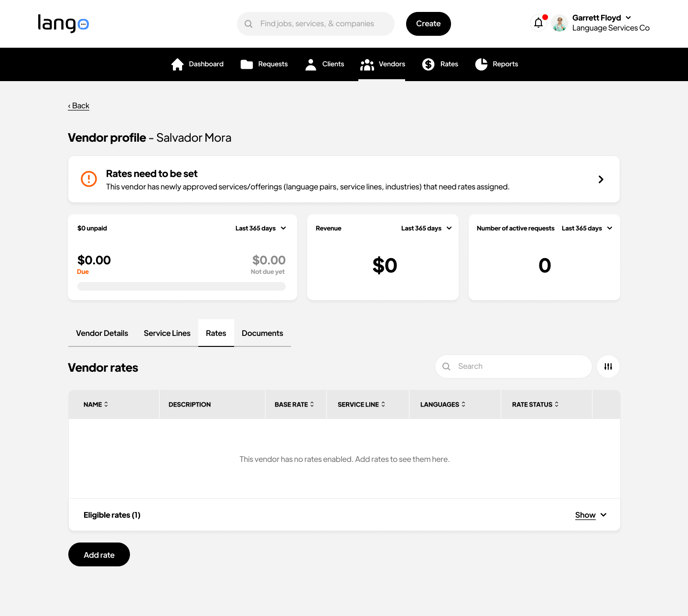
- View the vendor profile header showing the vendor name.
- Note any pending notifications or required actions at the top.
Step 2: Understanding Key Metrics
Financial Overview
- Unpaid Amount - Total pending payments.
- Revenue - Total earnings for selected period.
- Number of active requests - Current ongoing assignments.
Time Period Selection
- Use the "Last 365 days" dropdown to adjust the viewing period.
- All metrics update according to selected timeframe.
Step 3: Navigation Tabs
Main Sections
- Vendor Details - Basic information and profile.
- Service Lines - Available services.
- Rates - Rate management and configuration.
- Documents - Required documentation.
Step 4: Rate Management Table
Table Headers
- Name - Rate identifier.
- Description - Service details.
- Base Rate - Standard rate amount.
- Service Line - Type of service.
- Languages - Applicable language pairs.
- Rate Status - Current status.
Step 5: Rate Actions
Available Actions
- Add rate - Create new rate entries.
- Search - Filter through existing rates.
- Show eligible rates - View applicable rate options.
Accessing Eligible Rates
Step 1:
Location
- Navigate to the Vendor rates section.
- Locate the "Eligible rates" dropdown section.
- Click to expand the eligible rates panel.
Step 2: Understanding Rate Components
Rate Information Fields
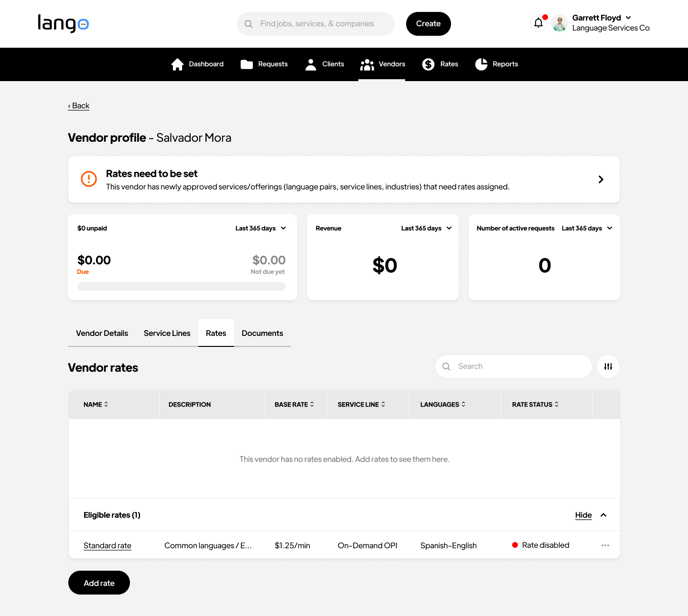
- Standard rate - Default rate name for basic services.
- Common languages - Language pairs available.
- Rate amount - Price per minute (e.g., $1.25/min).
- Service type - Service category (e.g., On-Demand OPI).
- Language pair - Specific language combinations.
- Rate status - Current state (enabled/disabled).
Step 3: Rate Status Management
Status Indicators
- Rate disabled - Shown with red indicator.
- Rate enabled - Shown with green indicator.
- Pending approval - Shown with yellow indicator.
Step 4: Rate Actions
Available Controls
- Hide/Show - Toggle eligible rates visibility.
- Add rate - Create new rate entries.
- More options (⋯) - Access additional rate settings.
Step 5: Rate Configuration
Configuration Options
- Set base rate amount.
- Select applicable service lines.
- Choose language pairs.
- Enable or disable rates.
General Information
Step 1:
Required Fields
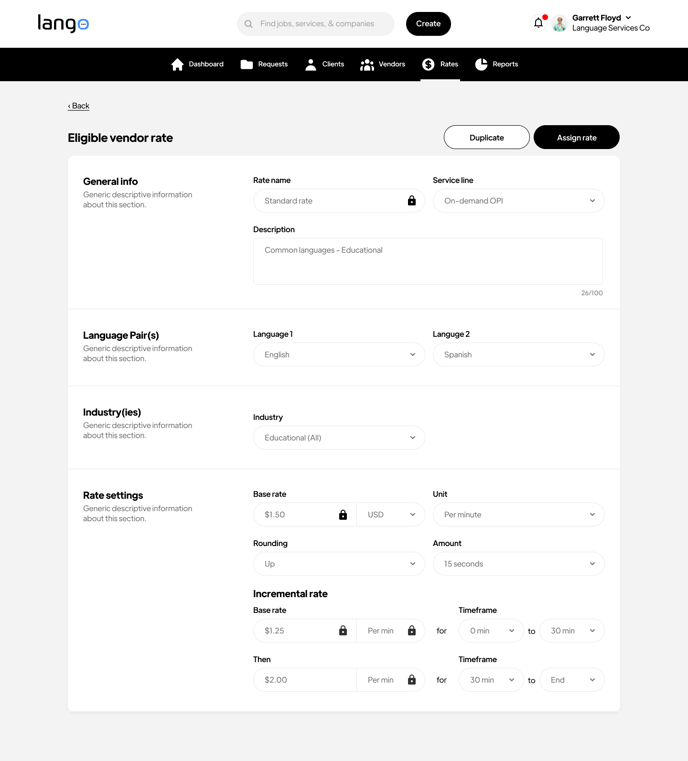
- Rate name - Enter descriptive name (e.g., "Standard rate").
- Description - Add details about rate application.
- Service line - Select appropriate service type.
Step 2: Language Configuration
Language Pair Setup
- Language 1 - Select source language (e.g., English).
- Language 2 - Select target language (e.g., Spanish).
- Industry - Choose applicable industry sectors.
Step 3: Base Rate Settings
Rate Components
- Base rate amount - Enter numerical value.
- Currency - Select from available options (e.g., USD).
- Unit - Choose rate unit (e.g., Per minute).
Step 4: Rounding Rules
Time Calculations
- Rounding direction - Select Up or Down.
- Rounding amount - Choose increment (e.g., 15 seconds).
Step 5: Incremental Rate Setup
Time-based Pricing
- Base rate period - Set initial rate and timeframe.
- Secondary rate - Configure rate for extended duration.
- Time ranges - Define start and end times for each rate.
Rate Assignment Dialog
Step 1:
Confirmation Message
- Clear confirmation prompt asking to assign rate to specific vendor.
- Vendor name clearly displayed in confirmation message.
- Information about rate visibility in Vendor Profile.

Step 2: Understanding the Impact
Visibility Notice
- Rate will be visible under 'Rates' in vendor profile.
- Changes take effect immediately upon confirmation.
- Rate becomes part of vendor's active rate structure.
Step 3: Available Actions
Action Buttons
- Cancel - Abort the rate assignment process.
- Yes, assign rate - Confirm and implement the rate.
Step 4: Confirmation Options
Decision Points
- Review rate details before confirming.
- Option to cancel if assignment needs revision.
- Clear confirmation button for proceeding.
Step 5: Post-Assignment
Next Steps
- Rate becomes immediately active for the vendor.
- Confirmation message appears upon successful assignment.
- Return to vendor profile to verify rate application.
Accessing Vendor Rates
Step 1:
Navigation
- Click "‹ Back" to return to previous screen.
- View vendor profile header with vendor name.
- Access the Rates section from the navigation tabs.
Step 2: Understanding Key Metrics
Financial Overview
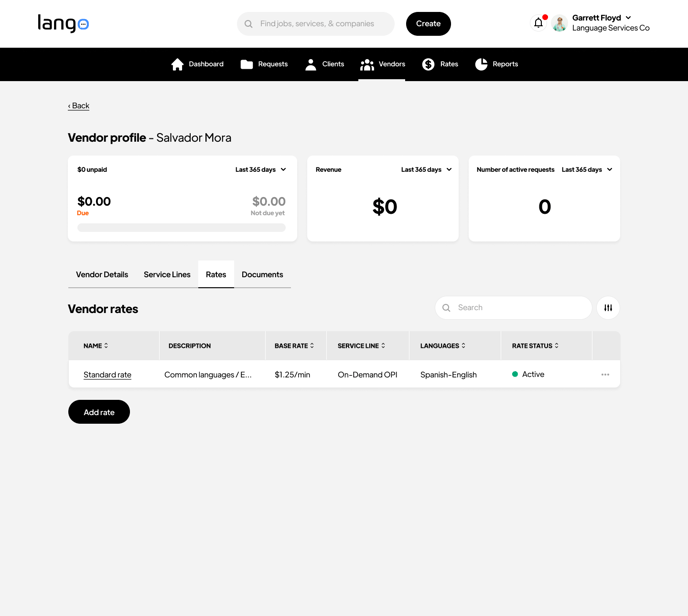
- Unpaid Amount ($0.00) - Shows pending payments.
- Revenue ($0) - Displays total earnings.
- Number of active requests (0) - Shows current assignments.
Step 3: Rate Table Navigation
Table Headers
- Name - Rate identifier.
- Description - Service details.
- Base Rate - Standard rate amount.
- Service Line - Type of service.
- Languages - Available language pairs.
- Rate Status - Active/Inactive indicator.
Step 4: Managing Rates
Available Actions
- Add rate - Create new rate entries.
- Search - Filter through existing rates.
- More options (⋯) - Access additional settings.
Step 5: Rate Status
Status Indicators
- Active - Shown with green indicator.
- Inactive - Shown with red indicator.
- Pending - Shown with yellow indicator.
Need Help?
- If you need further assistance, use the Langston chatbot at the bottom right of the page, or reach out to support.