
Onboarding as an Individual Interpreter: A Step-by-Step Guide
Welcome!
Welcome to Lango! We’re excited to have you on board. This guide will help you set up your account and get started with our platform. Follow the steps below to complete your onboarding process.
Creating Account / Logging In
Step 1: Sign Up
-
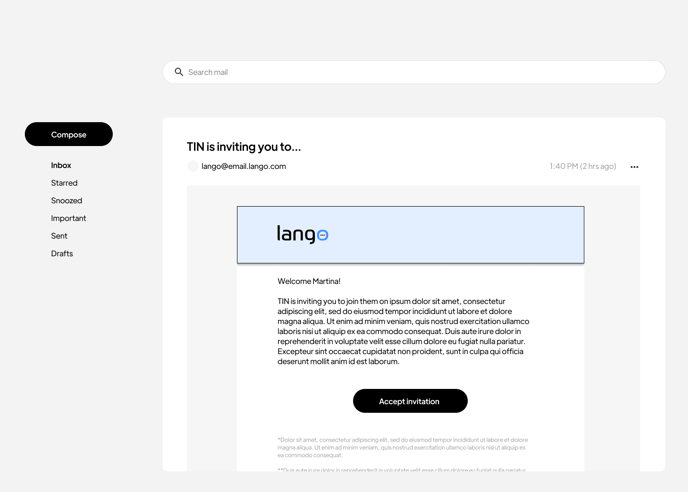
You should have received an email invitation from your Language Service Provider to join them on Lango. Click the unique link in that email to register for an account and accept the invitation.
-
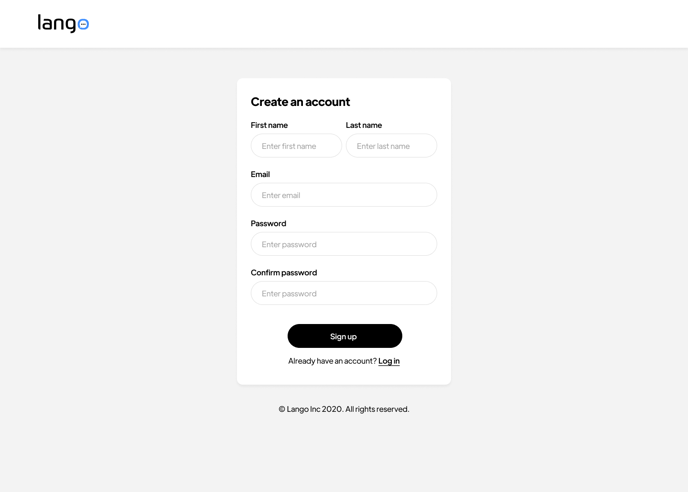
Please provide your first name, last name, email address, and create a password that you will need to confirm.
-
Click Sign Up.
-
Check your email for a confirmation message and follow the instructions to verify your account.
Step 2: Log In
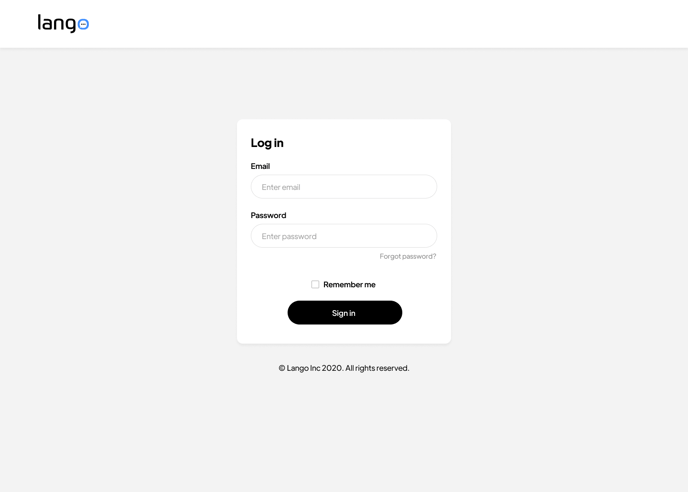
- If you already have an account, click Log in.
- Enter your email and password.
- Click Sign in.
If you ever find yourself having trouble with your password, just tap "Forgot Password" to reset it and get back on track.
-
Screenshot Instructions:
Basic Info
Step 3: Enter Basic Info
- After logging in, you'll be prompted to enter some basic information.
- Fill in your full name, contact number, and other required fields.
- Click Save & Continue
- Screenshot Instructions:
.png?width=688&height=720&name=Linguist%20Onboarding%20-%20Basic%20information%20(1).png)
Service Lines
Step 4: Select Service Lines
- Select the service lines you offer (e.g., translation, interpretation, transcription).
- Check the boxes next to the services you provide.
- Click Save & Continue
-
Screenshot Instructions:
.png?width=688&height=720&name=Linguist%20Onboarding%20-%20Select%20Service%20Lines%20(1).png)
Language Pairs
Step 5: Choose Language Pairs
- Select your language pairs (e.g., English to Spanish).
- Select any of the available options that suit you best.
- Click Save & Continue when done.
- Screenshot instructions:
.png?width=688&height=516&name=Linguist%20Onboarding%20-%20Select%20Service%20Lines%20(2).png)
Select Industries
Step 1: Access the Select Industries Section
- During the onboarding process, you will reach the Select Industries section located on the right side of the screen.
- Here, you will see a prompt: "Select industries this language pair is available for."
- Screenshot instructions:
-1.png?width=688&height=516&name=Linguist%20Onboarding%20-%20Select%20Industries%20-%20Nested%20(2)-1.png)
Step 2: View Industry Options
- You will see several options to choose from, including:
- All
- Education
- Government
- Each of these options may have sub-options that you can select.
Step 3: Select Industries
- To specify the industries for which your language pair is available, click on the appropriate checkboxes next to the industry names.
- If you want your language pair to be available for all industries, select the All option.
- If you want to specify particular industries, you can select Education, Government, or other relevant options.
Step 4: Save and Continue
- Once you have selected the desired industries, click the Save & Continue button to proceed with the onboarding process.
- This will save your industry preferences and take you to the next step.
Vendor Portal
Step 6: Vendor Portal
- After completing the setup, you will be redirected to the Vendor Portal.
- Here, you can view and accept language service requests.
"Onboarding Video Coming Soon!"
All Set!
You're now ready to start receiving language service requests on Lango! 🚀