
Welcome to Lango! We’re excited to have you on board. This guide will help you set up your account and get started with our platform. Follow the steps below to complete your onboarding process.
Creating Account / Logging In
Step 1: Sign Up
-
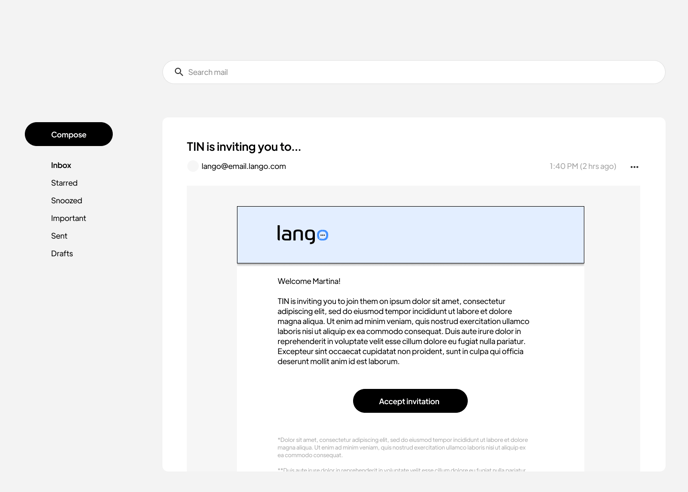
You should have received an email invitation from your Language Service Provider to join them on Lango. Click the unique link in that email to register for an account and accept the invitation.
-
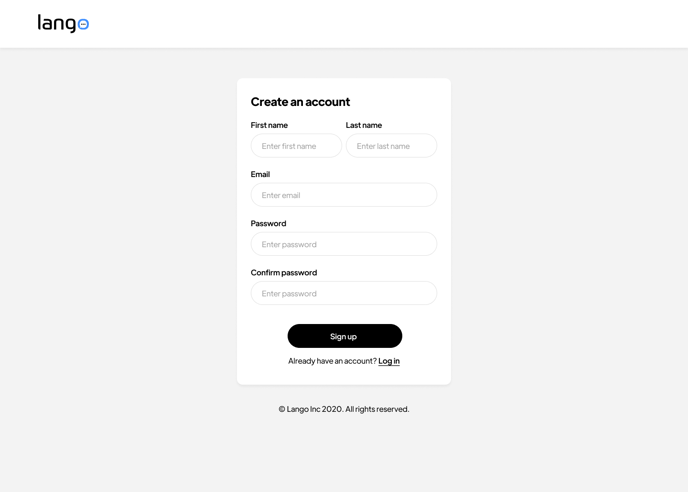
Please provide your first name, last name, email address, and create a password that you will need to confirm.
-
Click Sign Up.
-
Check your email for a confirmation message and follow the instructions to verify your account.
Step 2: Log In
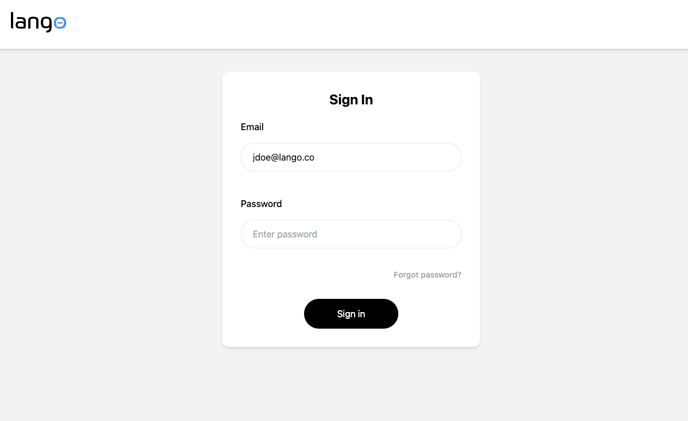
- If you already have an account, click Log in.
- Enter your email and password.
- Click Sign in.
If you ever find yourself having trouble with your password, just click "Forgot Password" to reset it and get back on track.
Screenshot Instructions:
Select Organization
Step 1: Access the Select Organization Page
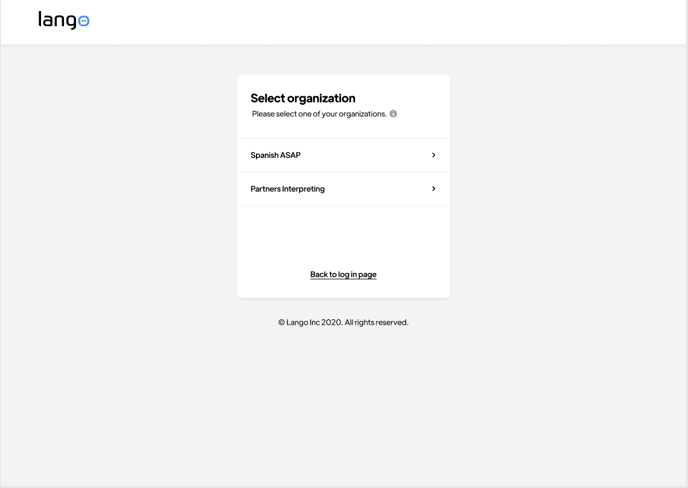
- During the onboarding process, if you belong to multiple organizations, you will be prompted to select an organization.
- You will see options such as “Spanish ASAP” and “Partners Interpreting.”
Screenshot Instructions:
Step 2: Select an Existing Organization
- If you belong to multiple organizations on Lango, select the organization you wish to associate with by clicking on its name.
- If you choose to accept the invitation as part of one of your existing organizations, click on the organization’s name.
Step 3: Create a New Organization
- If you do not want to associate with any of your existing organizations or if you do not see your organization listed, click the Create New option.
- This will allow you to create a new organization for your account.
Step 4: Back to Login Page
- If you need to return to the login page for any reason, click the Back to Login Page button located at the bottom of the screen.
Why You Need to Do This
- Multiple Organizations: Users typically need to select an organization if they belong to multiple organizations on Lango. This allows you to choose which organization you want to associate with for the current session.
- New Users: If you are new to Lango and do not belong to any organization, you will not see this screen. The system will automatically create a new organization for you during the onboarding process.
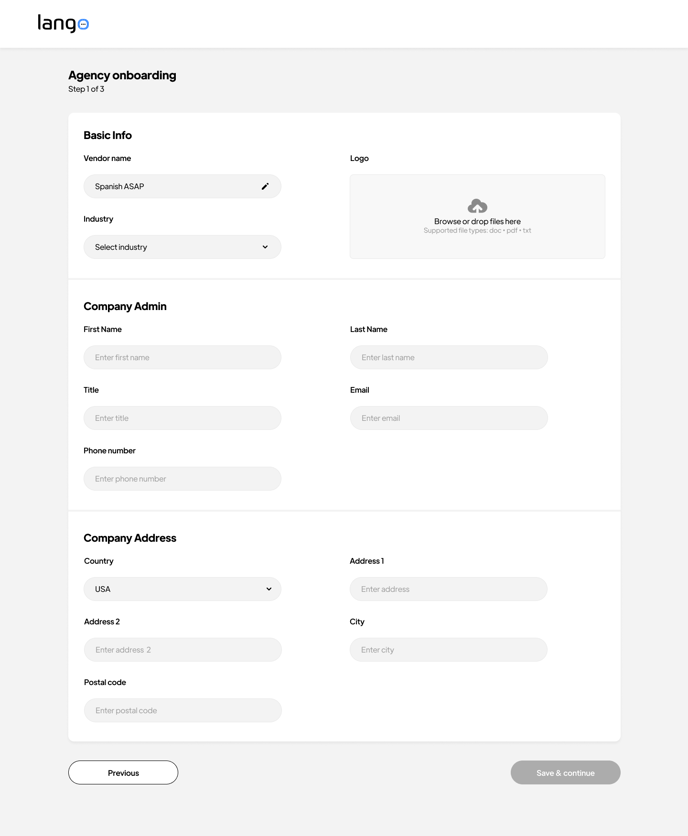
Basic Info
Step 3: Enter Basic Info
- After logging in, you'll be prompted to enter your basic information.
- Fill in your full name, contact number, and other required fields.
- Click Save & Continue
Screenshot Instructions:
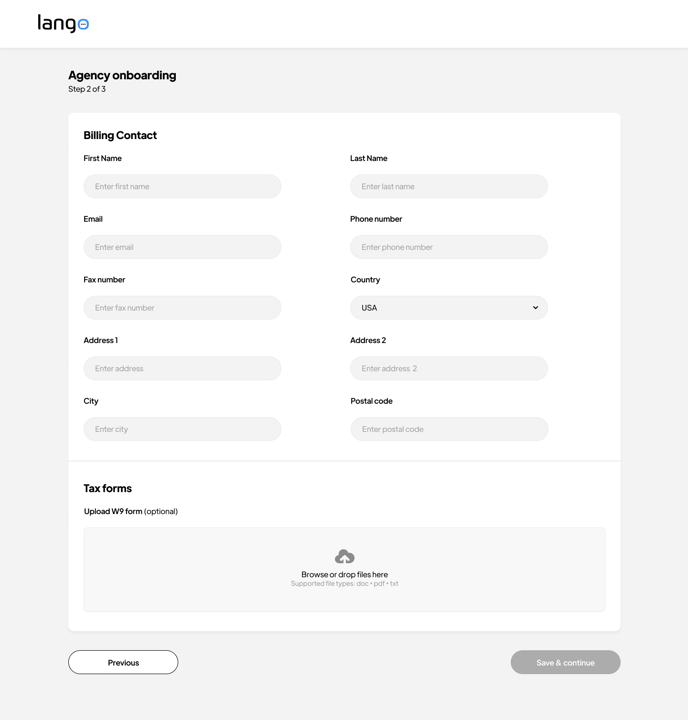
Step 4: Enter Billing Contact
-
After adding your basic information, you will be prompted to enter your billing contact details.
-
Fill in your full name, contact number, and any other required fields.
-
Upload any necessary tax forms.
-
Click Save & Continue.
Adding Users
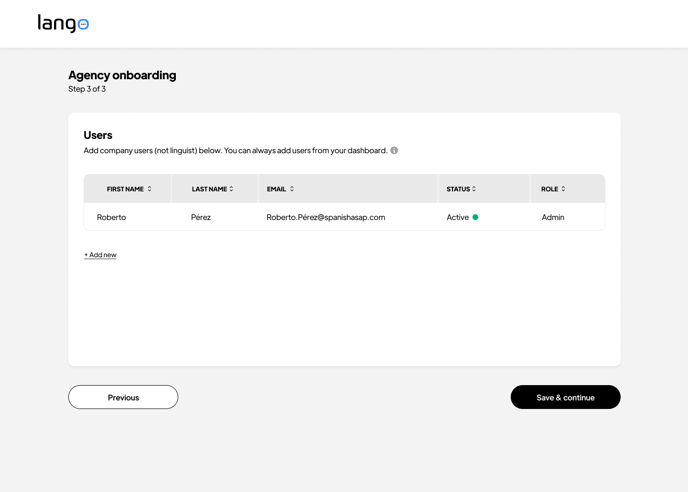
Step 4: Add Company Users
- Select the service lines you offer (e.g., translation, interpretation, transcription).
- Click the + Add New button to add a new user.
- Click Save & Continue.
Screenshot Instructions:
Inviting New Users to Your Account
Follow these steps to invite new users to your account. You can assign different roles such as User or Admin.
Step 1: Choose a User to Invite
- Navigate to the Users section in your account settings.
- Click on Invite New User.
Step 2: Fill in User Information
- Enter the new user's name and email address.
- Select their role by clicking on either the User or Admin button.
- User: Basic access to the platform.
- Admin: Full access, including administrative controls.
Step 3: Send the Invite
- Once you've entered all the required information and selected the appropriate role, click Send Invite.
- The new user will receive an email invitation to join your account.
Screenshot Instructions:
-1.png?width=688&height=493&name=Vendor%20Onboarding%20-%20Users%20(1)-1.png) By following these steps, you can easily invite new users to your platform and manage their roles effectively. For any additional assistance, please contact our support team.
By following these steps, you can easily invite new users to your platform and manage their roles effectively. For any additional assistance, please contact our support team.
All Set!
You're now ready to start receiving language service requests on Lango! 🚀