
This guide will walk you through the process of adding and customizing a rate sheet and applying the rate to eligible vendors.
Step 1: Access the Rates Book
- Navigate to Rates from the main navigation menu.
- This will take you to the Rates book, where you can see a list of all of the rates sheets that you have created
- Select Vendor Rates and click Add Rate to begin creating a new rate.

Step 2: General Information
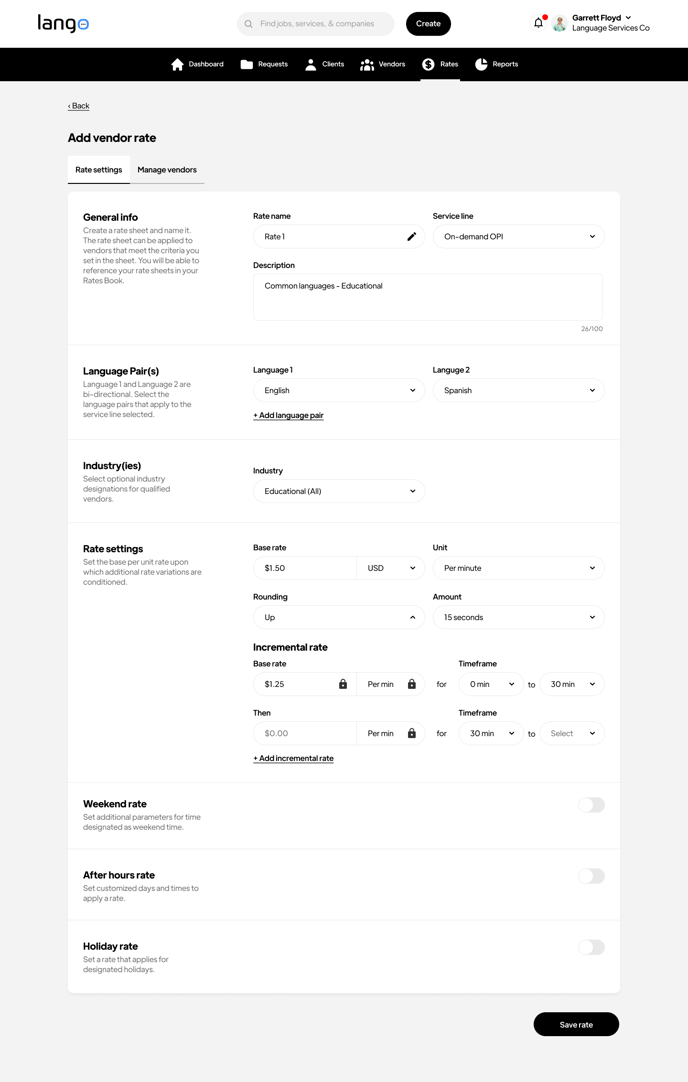
- Rate Name: Provide a descriptive name for the rate sheet (e.g., "On-demand OPI Educational").
- Description: Add a brief description of the purpose of the rate sheet.
- Service line: Select the service line (e.g., On-demand OPI, VRI).
Step 3: Language Pair(s)
-
Add one or more language pairs using the Add Language Pair option.
-
Note that the languages are bi-directional, meaning that interpretation occurs from either direction between the two languages
Step 4: Industry-Specific Settings
- Industries: Choose the industry or industries as they apply to the rate relative to the language pairs (e.g., Legal).
- Select "All" or specify subsets as needed.
Step 5: Rate Settings
- Base Rate:
- Set the base rate (e.g., $1.50 USD) and unit of measure (e.g., $1.50 per minute).
- Incremental Rates:
- Define timeframes and corresponding rates (e.g., $1.25/min for 0-30 mins).
- Add more timeframes using Add Incremental Rate.
- Rounding Amount:
- Specify rounding increments (e.g., Up to 15 seconds).
- A Pro-rata rate is calculated based on the precise amount of time
- Weekend Rates:
- Add custom rates for weekends, as defined in the settings. A weekend rate cannot be applied unless those hours have been defined in the settings.
- After Hours Rates:
- Add custom rates for after working hours. An After Hours rate cannot be applied unless those hours have been defined in the settings.
- Holiday Rates:
- Set specific rates for designated holidays. A Holiday rate cannot be applied unless holidays have been defined in the settings.
 Step 6: Manage Vendors
-
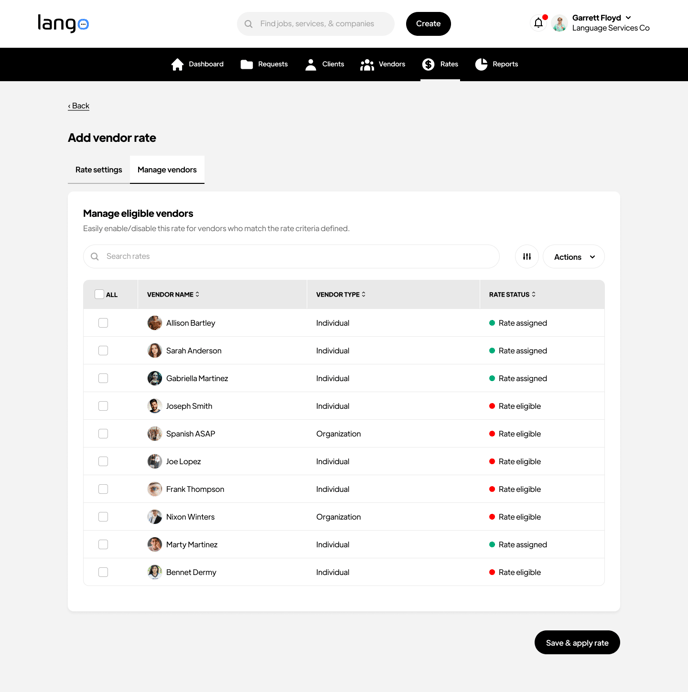
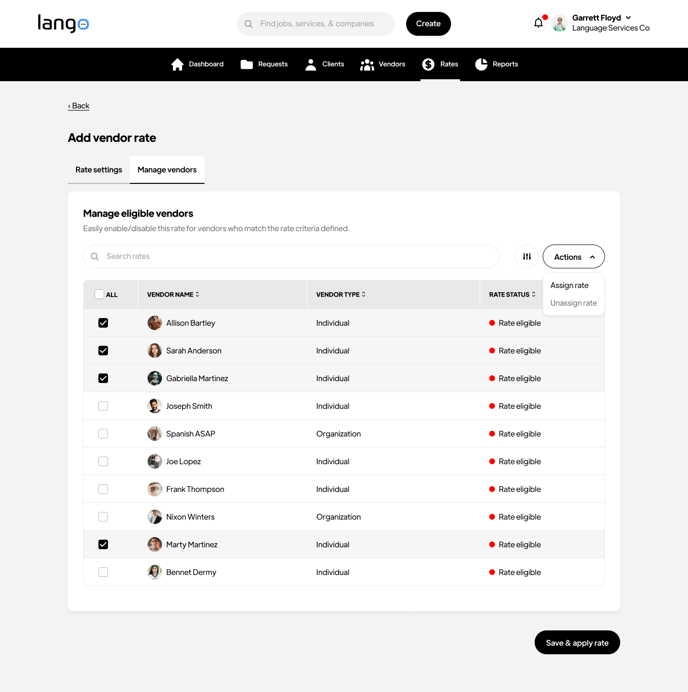
Go to Manage Vendors to assign the rate sheet to the Vendors who are qualified for the language pair, service line and industry.
-
Select eligible vendors from the list.
-
Apply the rate to the chosen vendors by clicking Save & Apply Rate.
Step 7: Managing Vendors without assigned rates

Completion
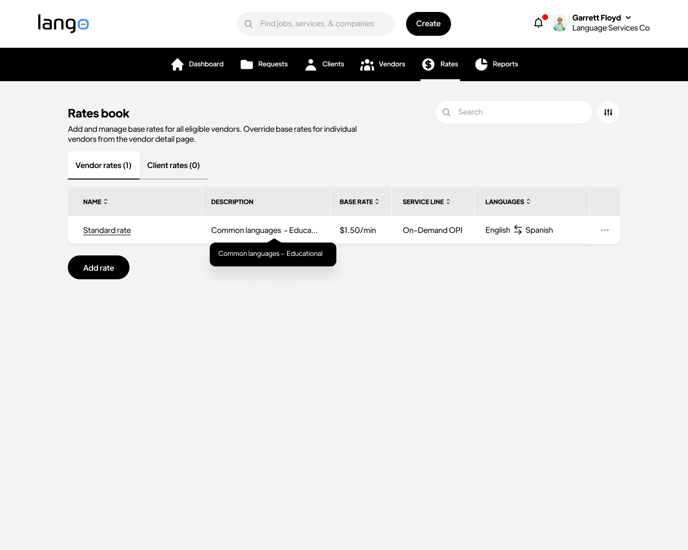
Once the rate is successfully created and applied, it will appear in the Rates Book under the respective Vendor Rates or Client Rates section.
Need Help?
- If you need further assistance, use the Langston chatbot at the bottom right of the page, or reach out to support.