
Learn how you can create a large batch machine translation project
Large batch machine translation works as you point it to a storage drive folder (OneDrive, Box, One Drive for Business etc.) and place all files inside that folder. Lango syncs the storage drive and uses that folder to translate all files placed inside.
Lango > Projects
1. Follow the above-mentioned workflow to land on the Projects grid.
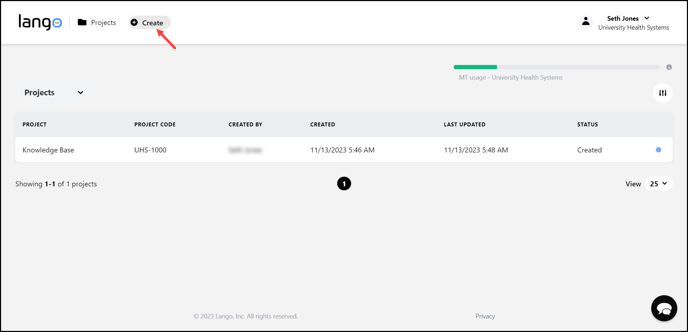
2. Click the  button located at the top of the screen. Doing so opens the project creation screen.
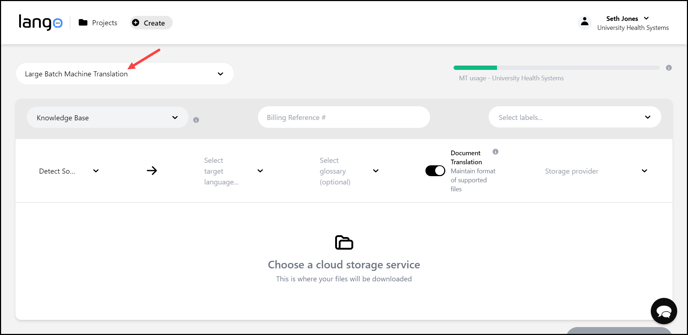
3. From the Project Type dropdown, choose Large Batch Machine Translation.
4. Select the project for which you want to create a translation request using the Select Project dropdown.
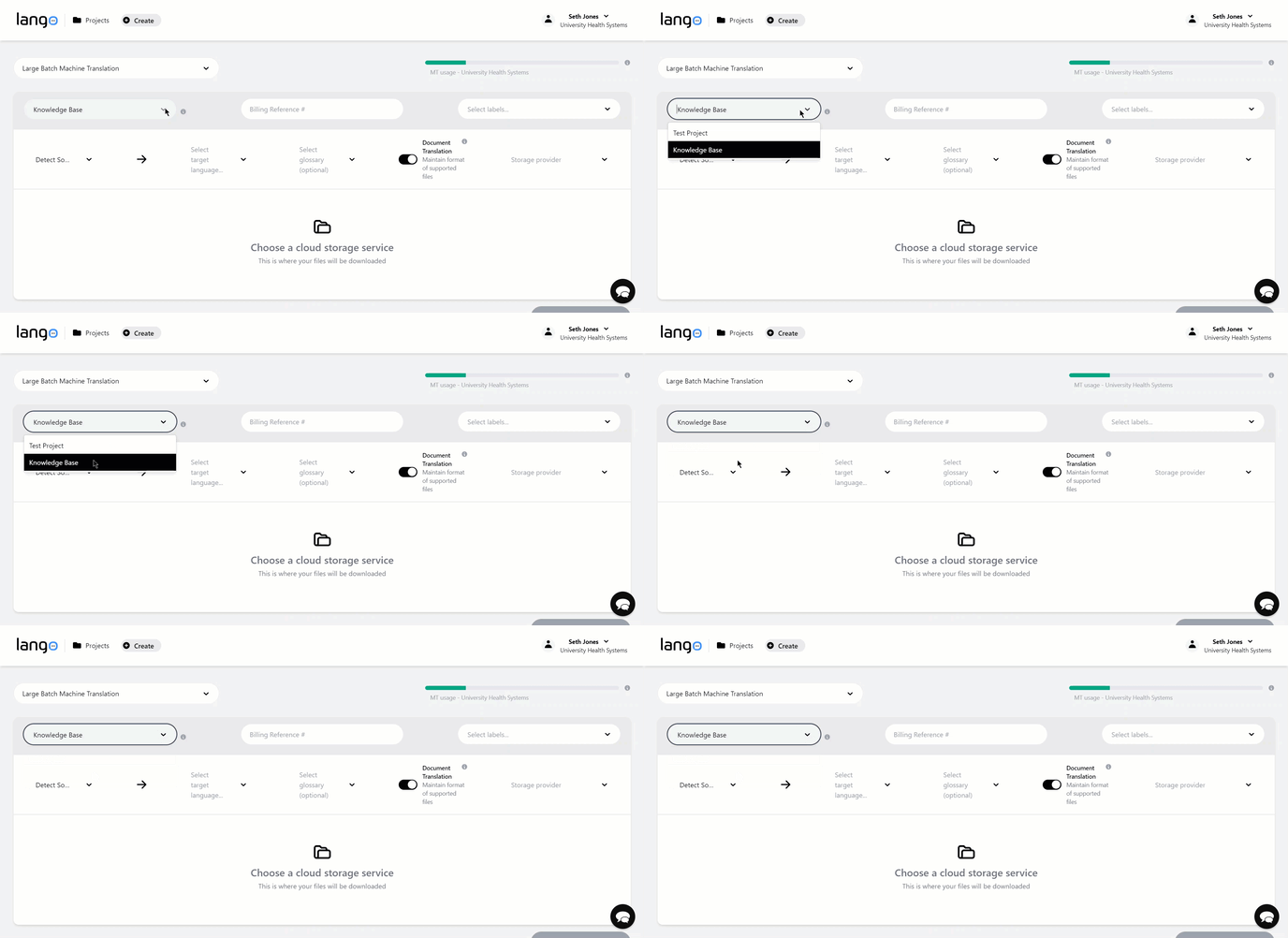
5. In case the project is not an existing one, click Create [project name] as you type the name in Select Project dropdown.

6. Enter the billing reference number in the Billing Reference # field.
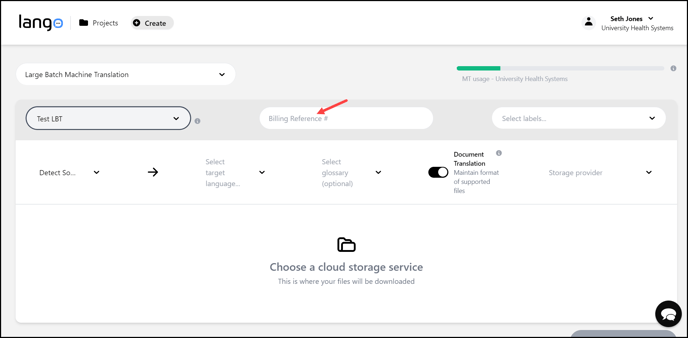
7. Enter the labels for the project in the Labels field or choose an existing one from the dropdown.
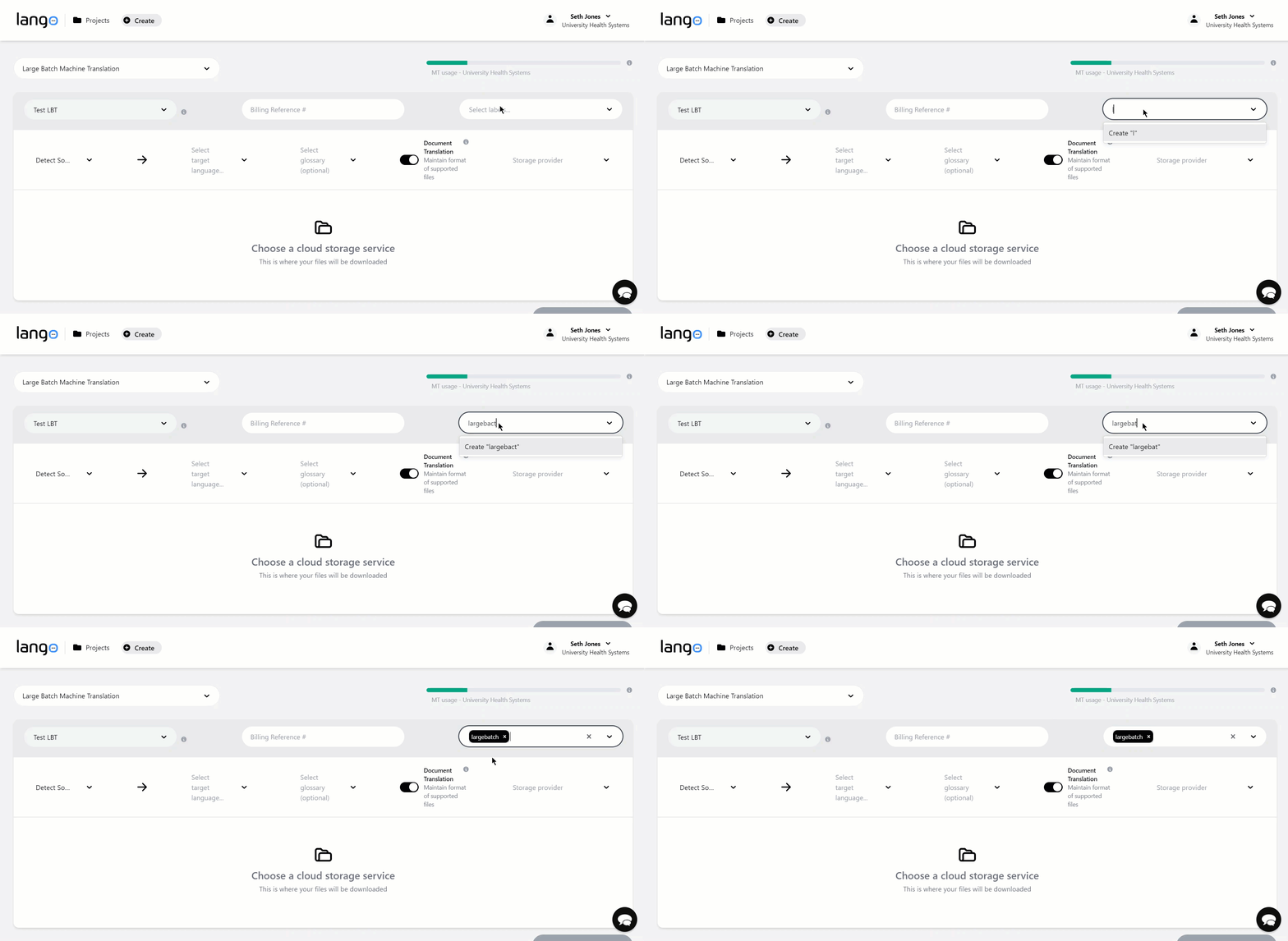
8. In case you do not want the source language to be detected automatically, choose the language of the document using the Detect Source Language dropdown.
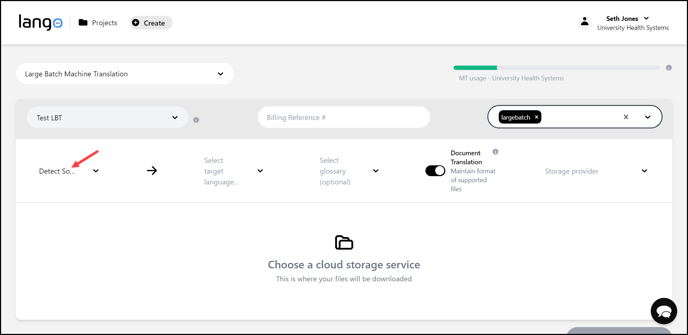
9. Select the target language from the Select Target Language dropdown.

10. In case you want to choose a glossary, you can select one from the Select Glossary dropdown.

11. If you do not want the format of the uploaded document retained, disable the Document Translation toggle button.

12. Choose the cloud storage provider you want the folder to be picked from using the Storage Provider dropdown. Once selected, link the selected cloud storage account for the folders to be populated.
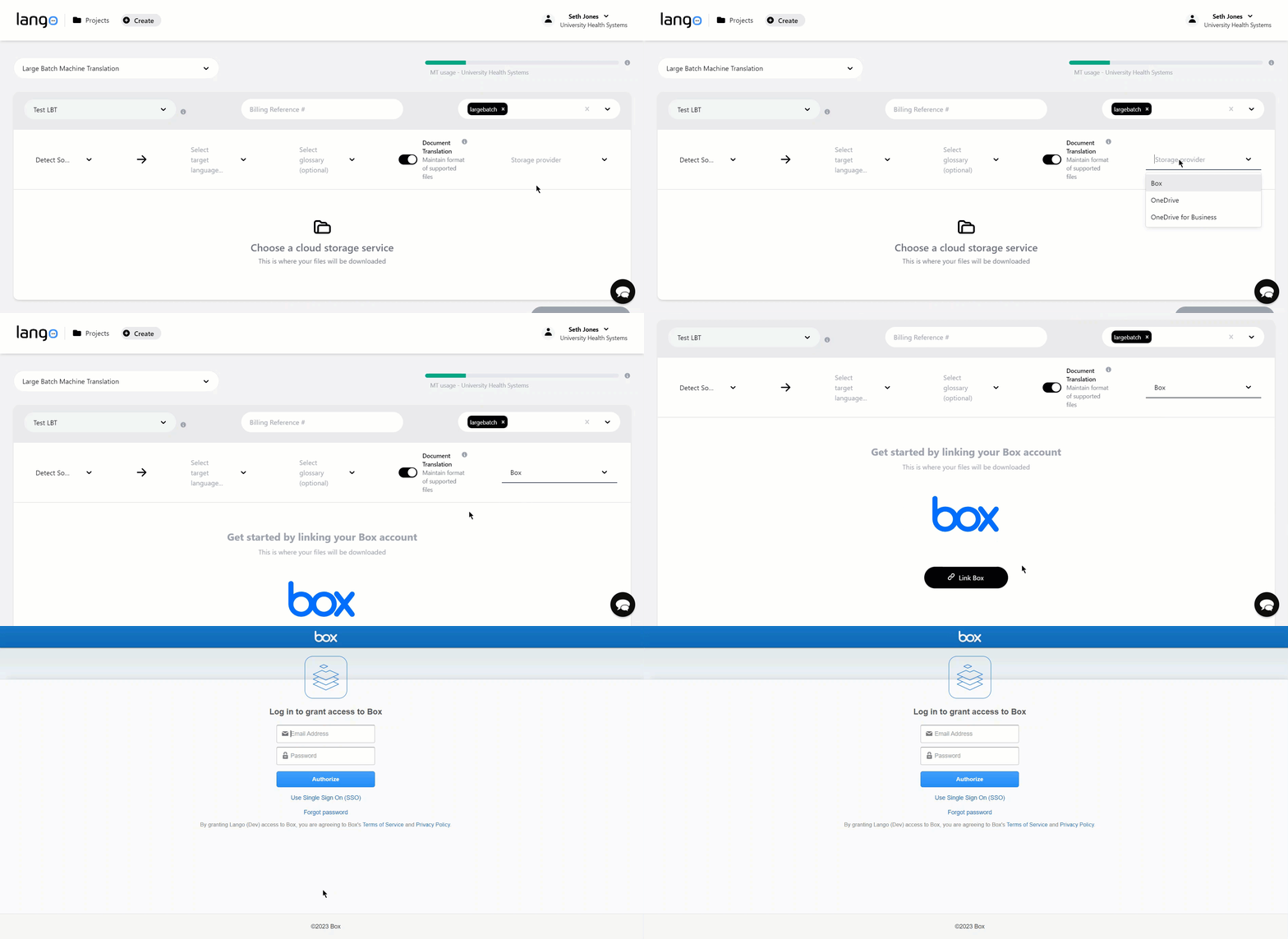
13. Upon selecting the required folder, mark the show word count estimate if you want the total word count to be estimated.
14. Once the required selections are made, click the  button located at the bottom-right corner of the screen.
