
This guide will help you navigate the process of creating On-Demand Video and Audio Interpretation requests on Lango. Follow these steps to select your service options, fill out the necessary details, and start your interpretation request.
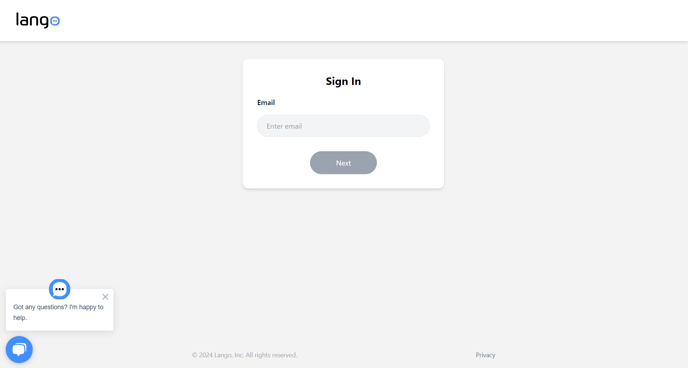
Step 1: Access the Sign In Page
- Open the Lango application to reach the Sign In page.
Step 2: Enter Your Email
- In the Enter Email section, type your email address.
- Click the Next button to proceed.
Screenshot Instructions:
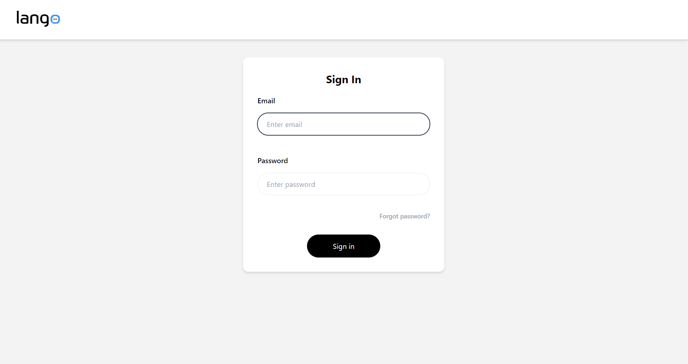
Step 3: Enter Your Password
- Enter your password in the provided field.
- Click the Sign In button to access your account.
Step 4: Use the “Forgot Password?” Option
- If you have forgotten your password, click the Forgot Password? link to reset your password.
Screenshot Instructions:
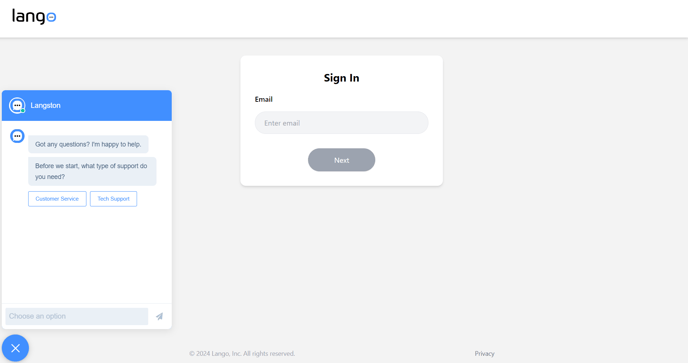
Step 5: Use the Langston Chatbot
- On the bottom left of the page, you’ll find the Langston Chatbot.
- Use the chatbot for assistance with any issues that may arise. Langston is there to help.
Screenshot Instructions:
Dashboard and Creating a Request
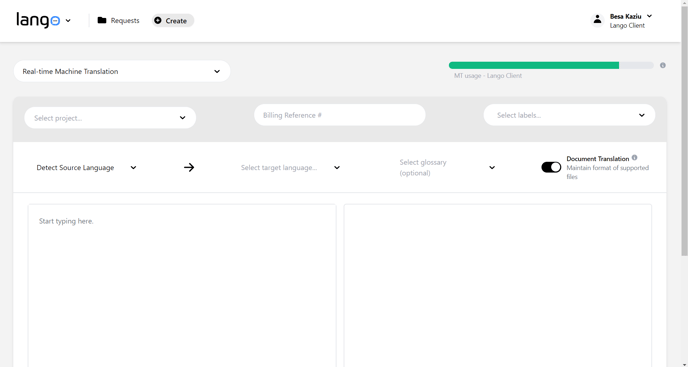
After signing in, you will be directed to the Dashboard where you can start creating your interpretation request.
Step 1: Access the Dashboard
- After signing in to your Lango account you can now access the Dashboard.
Screenshot Instructions:
Step 2: Click the Create Button
- On the Dashboard, click the Create button to initiate a new request.
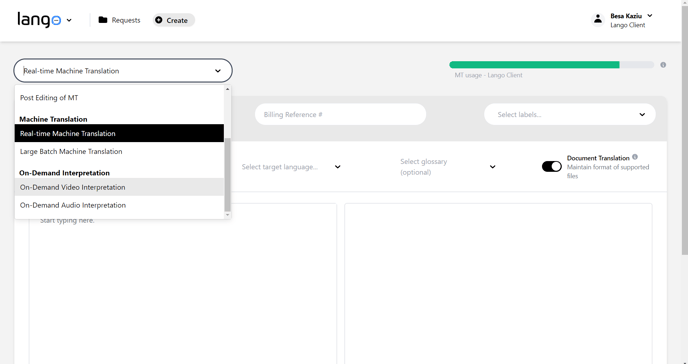
Step 3: Choose Your Interpretation Type
- After clicking Create, you will see options for:
- On-Demand Video Interpretation
- On-Demand Audio Interpretation
- Select the option that suits your needs.
Screenshot Instructions:
Fill Out Request Details
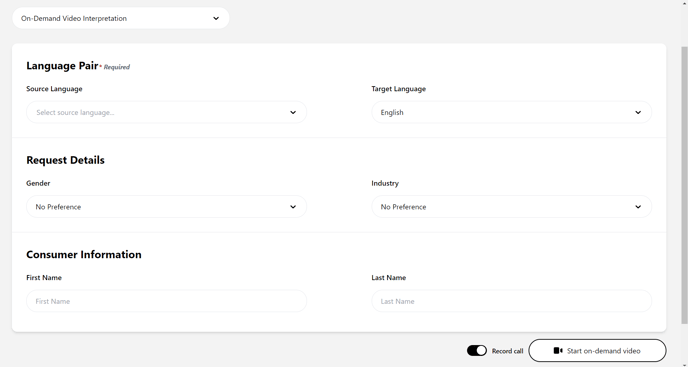
Once you select an interpretation type, you'll need to fill out details about your request.
Step 1: Enter Language Pair
- Choose the Language Pair by selecting the source language from the dropdown menu.
Step 2: Provide Request Details
- Under Request Details, specify:
- Gender of Interpreter: Select the preferred gender of the interpreter.
- Industry: Choose the industry relevant to your request.
Step 3: Fill Out Consumer Information
- Provide your Consumer Information:
- First Name
- Last Name
Screenshot Instructions:
Start the Request
Complete your request by selecting the service and deciding if you want to record the call.
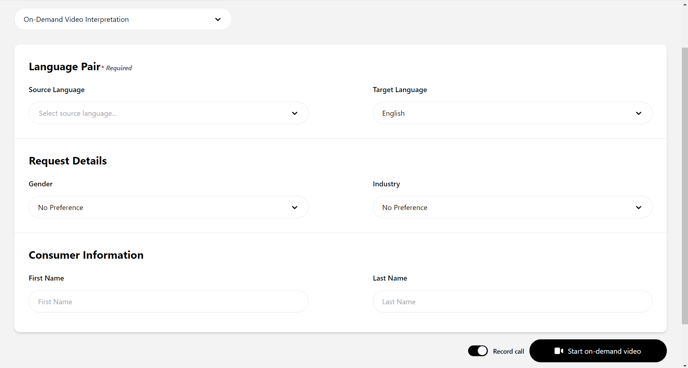
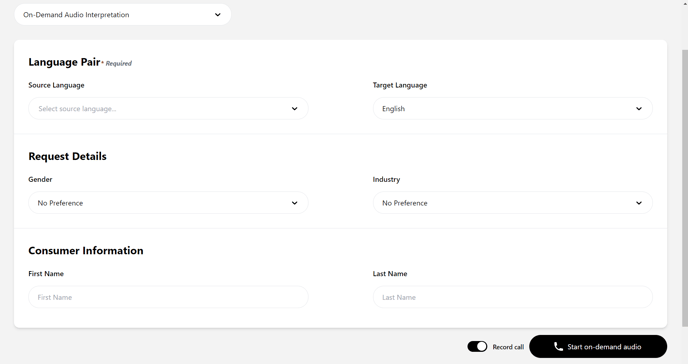
Step 1: Start On-Demand Interpretation
- Click the Start On-Demand Video or Start On-Demand Audio button based on your selection.
Step 2: Choose to Record the Call
- If you want to record the call, check the Record the Call checkbox before starting.
Screenshot Instructions:
Step 1: Connect to Lango Contact Center
- After clicking Start On-Demand Video or Start On-Demand Audio, you will be redirected to the Lango Contact Center.
- Allow notifications to access your microphone and camera.
Handling Video and Audio Calls
Step 1: Accepting a Call
- Once an interpreter accepts your call request, you will receive a notification to join the call.
- Click Accept to start the video or audio call on the next page.
Step 2: Managing the Call
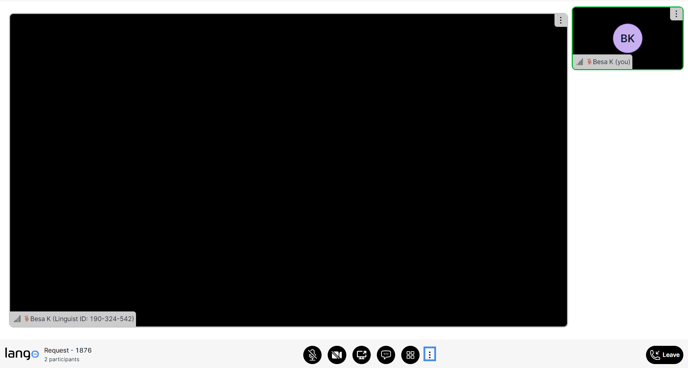
- During the call, you will see:
- Yourself and the interpreter (in case of a video call).
- The Lango logo at the bottom left.
- The Request ID and the number of participants.
- Microphone and video icons at the bottom center to manage settings.
- A chat icon to communicate with the interpreter.
Screenshot Instructions:
Step 3: Ending the Call
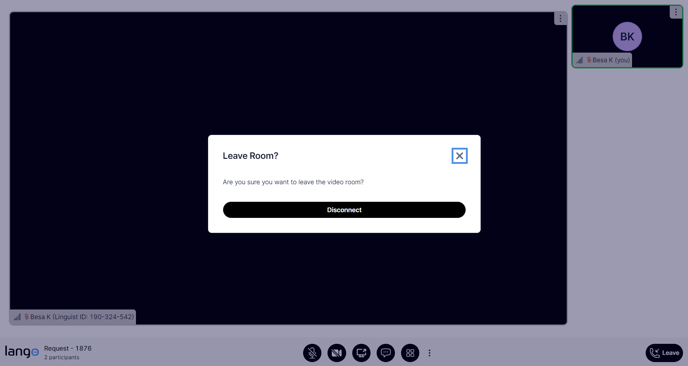
- When the call is finished, click the Leave button.
- You will be prompted to confirm if you want to leave the room and disconnect.
- After disconnecting, a popup will appear asking you to rate the call. Your feedback is important for further improvement.
Screenshot Instructions:

By following these steps, you can easily create and manage your On-Demand Video and Audio Interpretation requests on Lango. If you need any assistance or have further questions, please contact our support team.
You're All Set!
You're all set to start making OPI/VRI requests on Lango! 🚀