
Welcome to Lango! We’re excited to have you on board. This guide will help you set up your account and get started with our platform. Follow the steps below to complete your onboarding process.
Creating Account / Logging In
Step 1: Sign Up
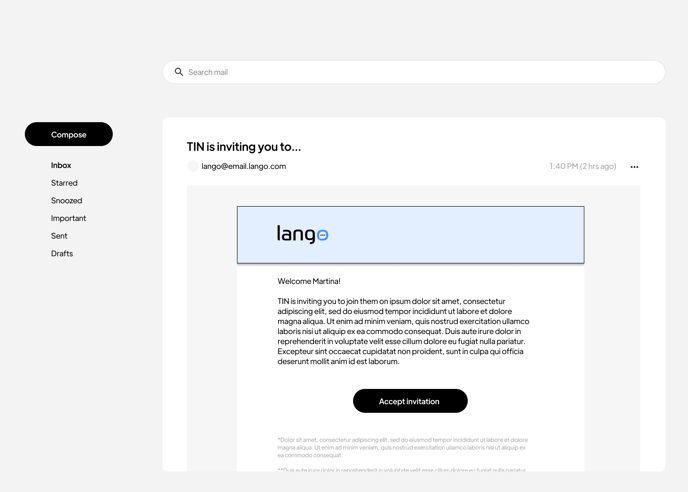
- Look for an email invitation from your Language Service Provider to join them on Lango. Click the unique link in that email to register for an account.
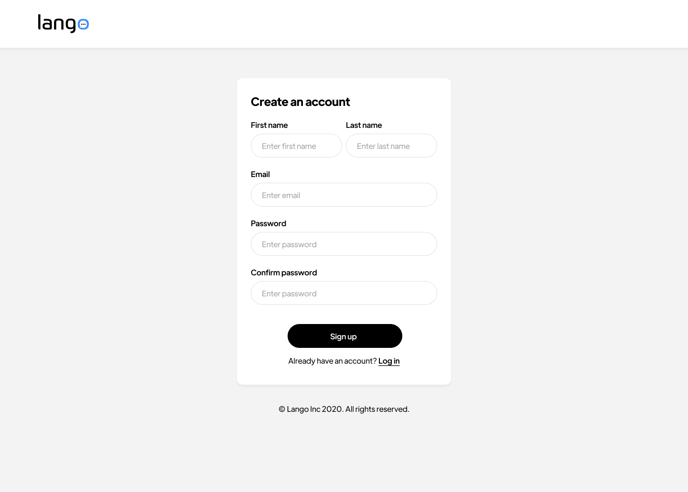
- Enter your work email address and create a password.
- Click Sign Up.
- Check your email for a confirmation message and follow the instructions to verify your account.
Screenshot Instructions:
Step 2: Log In
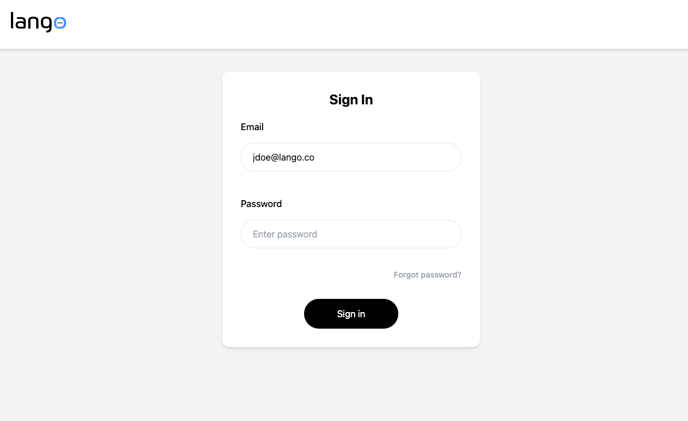
- If you already have an account, click Log in.
- Enter your email and password.
- Click Sign in.
Screenshot Instructions:
Step 3: Enter Basic Info
- After logging in, you'll be prompted to enter some basic information.
- Fill in your organization’s name, industry, logo and other required fields.
- Click Save & Continue
Screenshot Instructions:
.png?width=688&height=613&name=Client%20Onboarding%20-%20Basic%20information%20(1).png)
Step 4: Enter Billing Contact
- After adding some basic information, you will be prompted to enter the billing contact details.
- Fill in the full name, contact number, and any other required fields.
- Upload any necessary tax forms, e.g. W-9 or W-8.
- Click Save & Continue.
Screenshot Instructions:
.png?width=688&height=613&name=Client%20Onboarding%20-%20Billing%20(1).png)
Service Locations
Step 1: Access Service Locations in Client Onboarding
- Proceeding to the next step: Service Locations
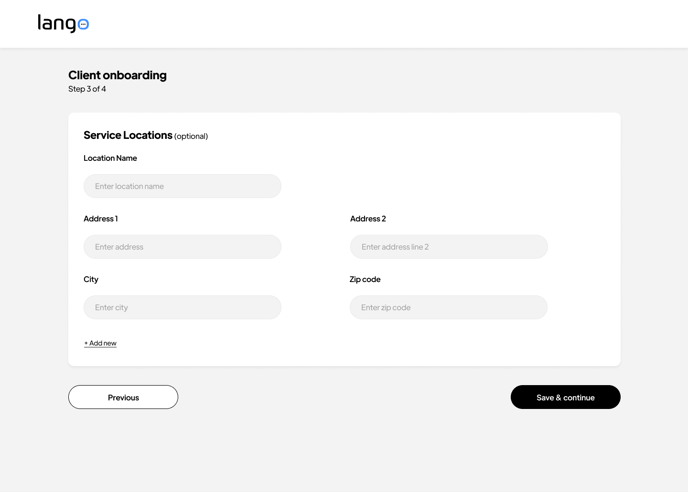
- In the Service Locations tab, you can manage your details.
Screenshot Instructions:
Step 2: View Service Location Details
- In the Service Locations section, you can see details such as:
- Location Name: The name of the service location.
- Address: The full address of the service location.
- City: The city where the service location is situated.
- Zip Code: The postal code for the service location.
Step 3: Add a New Service Location
- To add a new service location, click the Add New button.
Step 4: Enter New Location Details
- After clicking the Add New button, a new form will appear.
- Fill in the following details for the new service location:
- Location Name: Enter the name of the service location.
- Address: Enter the full address of the service location.
- City: Enter the city where the service location is situated.
- Zip Code: Enter the postal code for the service location.
Step 5: Save New Location
- Once you have filled in all the required details, click the Save & Continue button.
Adding Users
- "Next, you can add users to your company."
- "Remember, you can always add more users later from your dashboard."
Screenshot Instructions:
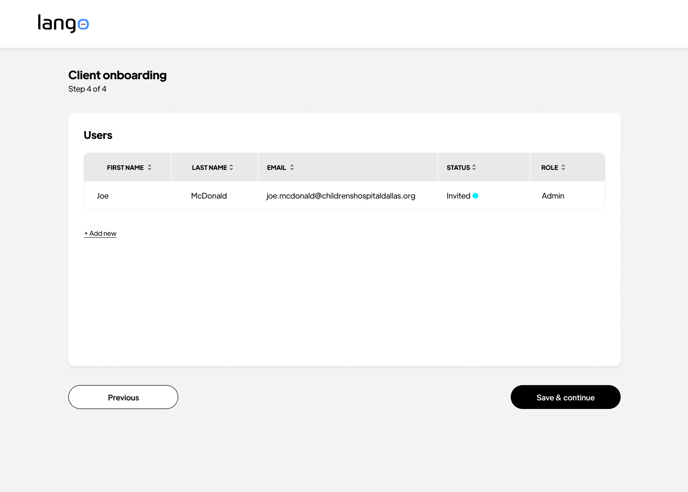
Inviting New Users
- Now, choose which user to invite and fill in the required information.
- You can select the new user’s role by clicking on either the ‘User’ or ‘Admin’ buttons.
- Once you've filled in the required fields, click ‘Send Invite’.
- The new user will receive an email invitation to join your account.
Screenshot instructions:
.png?width=688&height=493&name=Client%20Onboarding%20-%20Users%20(2).png)
By following these steps, you can easily invite new users to your platform and manage their roles effectively. For any additional assistance, please contact our support team.
All Set!
You're now ready to start receiving language service requests on Lango! 🚀