
This guide offers a thorough overview of how to use the 'bulk vendor uploading' feature, as an efficient way for LSP Admins to onboard multiple vendor individuals at once using a CSV file.
.png?width=688&height=359&name=Screenshot%202025-01-07%20at%2010.45.25%20AM%20(1).png)
Step 1
To get started, ensure that you are logged into the PM portal as an Admin. Navigate to the ‘Vendors’ tab, where you will find the option to add new vendors. Click on the ‘+Create’ button to open the ‘Create New Vendor’ popup and begin the process.
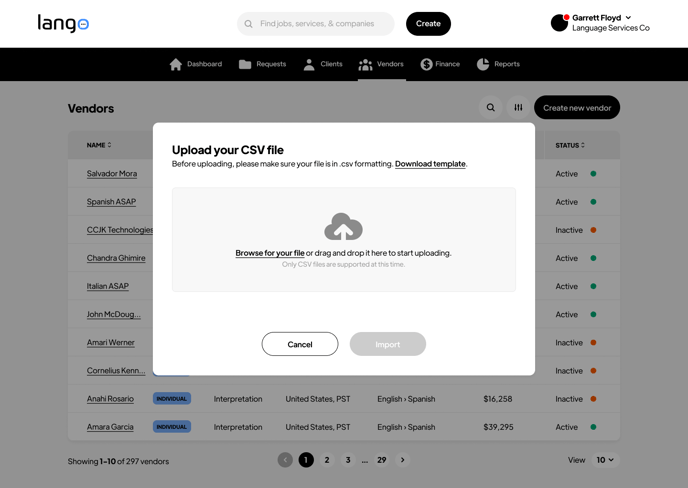
- Input CSV File:
- Download the Template:
- First, click the Download template button to download the template CSV file.
- Note that the headers in the template cannot be altered for the upload process to work correctly.
- Only .csv files are supported, so ensure you’re uploading with this format.
- Add Vendor Information:
- Open the template and fill it in with your vendors’ (individual interpreter) details, carefully following the formatting provided in the template.
- Do not modify the column headers to ensure the file is correctly processed.
- Upload the File:
- Once you’ve added your vendors to the template, return to the portal and click Browse for your file to locate and upload your CSV file.
- Alternatively, you can drag and drop the file into the upload area.
- Save Template (Optional):
- If needed, select Save As to save the file under a new name.
- You can add tags and choose a location for the saved file before clicking Save to continue or Cancel to abort the process.
- Once the file is selected, the Import button will allow you to proceed. If you wish to cancel, click Cancel.
- Download the Template:
Step 2
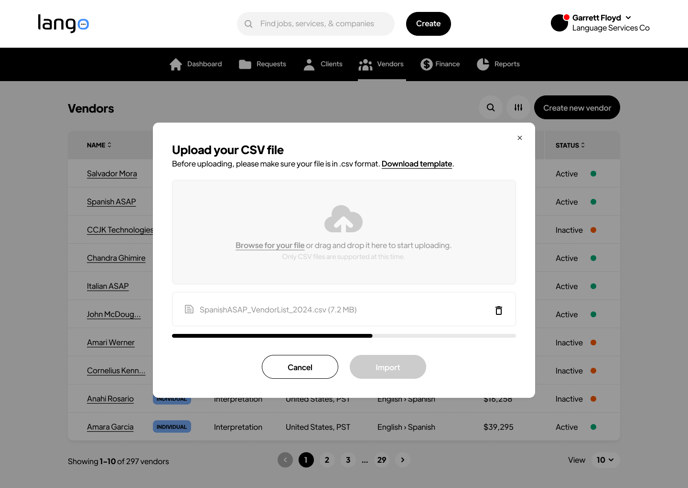
- File Processing:
- Once the file is selected, the Import button will allow you to proceed. If you wish to cancel, click Cancel.
- After the CSV file is uploaded, the system will begin processing the data.
- The file is scanned for any errors, such as missing fields, incorrect data formats, or duplicates.
- If the file passes validation, the system processes the data for import.
Step 3
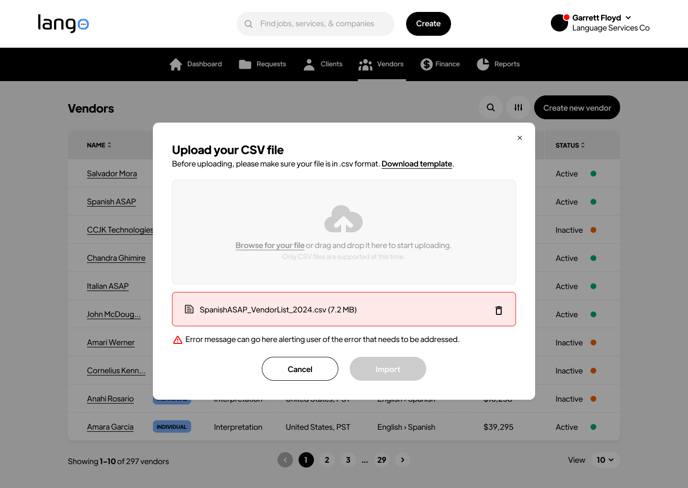
- Error Detection
- If any errors occur during processing, the system will display a red triangle indicating a validation failure, with the message: "There was an error header validation failed for the file."
- To proceed, review the file, make the necessary corrections, and re-upload it.
Step 4

- Successful Validation
- If the file passes all validations without any errors, it will be indicated by a green checkmark.
- Once the file is successfully imported, the vendors listed in the file will automatically receive invitations to the vendor portal, initiating the onboarding process.